[15 Apr 2026] [中文版]
[Hands-On] My Google AI Edge Lab Adventure 🐰
(Behind the Scenes: When Celery “Responds” to Chicken)[💻With Program Code HTML + JS]

Recently, a friend introduced me to the Google AI Edge Gallery. As a System Analyst (SA), I was immediately intrigued by the concept of Local LLMs. These models run directly on your device’s GPU.
This means once the setup is complete, the AI can function offline, providing a significant advantage for protecting sensitive information.
📍 Step 1: Mobile Experience & The “Linguistic Hiccup”
I started with the mobile version to test the “Ask Image” model. The process is straightforward: 。
- Select “Try it” under the Best overall model.
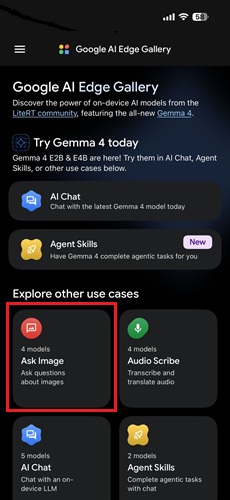
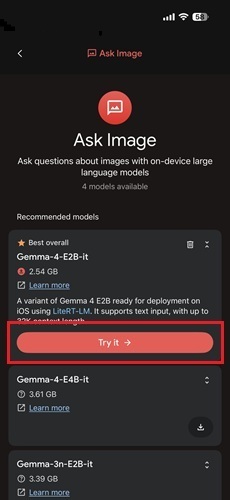
- Upload a photo.
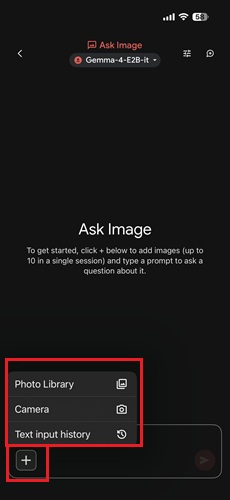
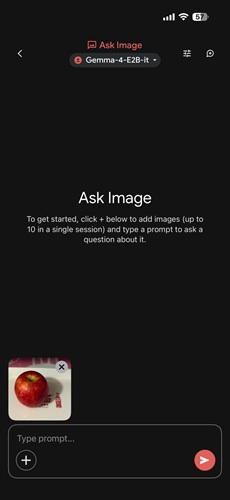
- Enter a prompt or leave it blank, then wait for the magic to happen。
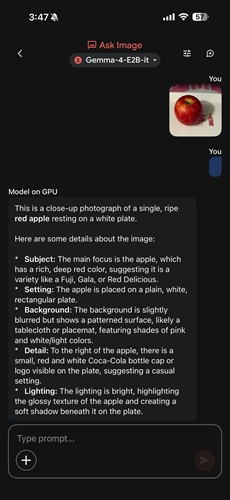
📸 A Soulful Dialogue During My Diet
I’ve been working with a nutritionist lately to lose weight, which means strictly low-calorie meals. For dinner (see photo), I insisted on grilling this chicken breast without a single drop of oil. However, being a bit lazy, I didn’t even bother cooking the celery and just served it raw on the side.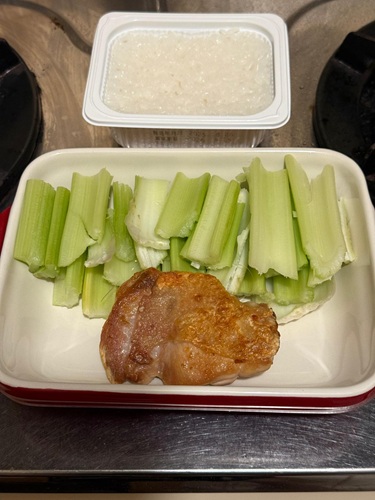
Looking at this somewhat “disharmonious” combination, I let the AI analyze it. To my surprise, it reported: “Celery Responds to Grilled Chicken Chop” (西芹答煎雞扒).
I immediately corrected it: “In Chinese, ‘答’ means to respond, but for food pairings, we use the homophone ‘搭’ (to pair).” At that moment, I wondered—was the AI being even lazier than me? Was it literally “responding” to the sheer disharmony of my raw celery and chicken? 😂
🛠️ Step 2: From Basics to MVP)
Remarks: HTML and JavaScript examples are provided at the bottom of the page.
This experience sparked my curiosity: could I build my own laboratory using code? I collaborated with Gemini to write a simple, uncustomized version to run on Codepen.
The Technical Architecture: Image Classifier
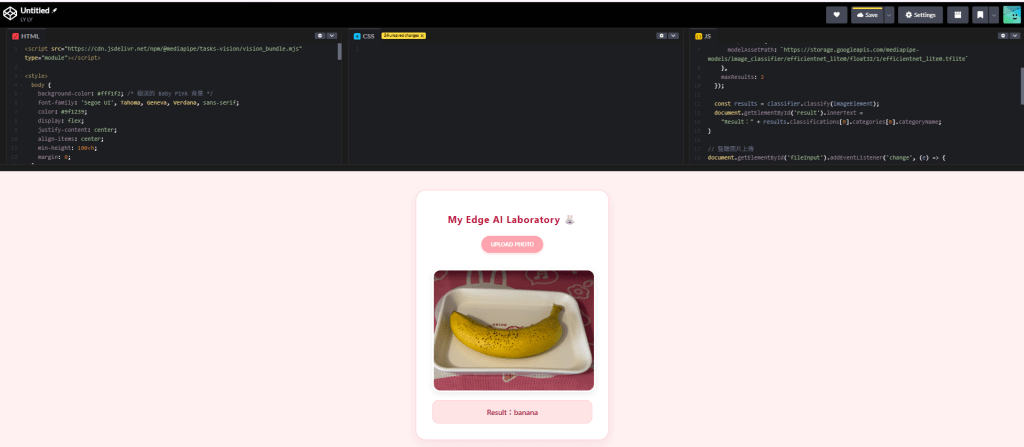
This version utilized the ImageClassifier API with the efficientnet_lite0 model.
[ 🧪 Unexpected UAT Result ]
I uploaded a photo featuring edamame, grilled salmon, and white rice. The AI confidently reported: “guacamole”!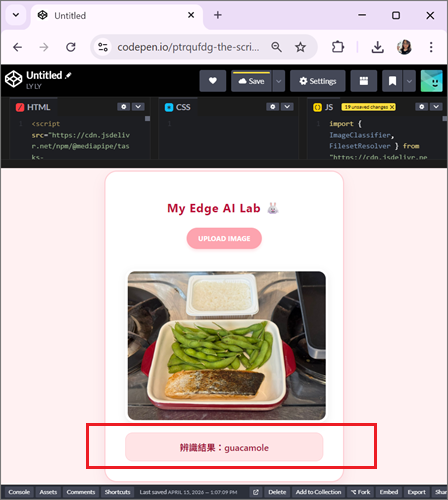
🔍 Deep Dive: Why the Mismatch?
Feature Extraction Error: The model was clearly distracted by the green edamame. In the logic of a lightweight model, a “green, granular” food item has the highest probability of being labeled as guacamole.
The Reality of Edge AI: Even though it was wrong, I actually wanted to praise it. This proved the model was running locally on the browser and wasn’t “cheating” by connecting to a massive cloud model for the right answer. This “raw” result is the true essence of Offline-First AI.
🎀 Step 3: Evolution! Annie’s Pink AI Lab
Remarks: HTML and JavaScript examples are provided at the bottom of the page.
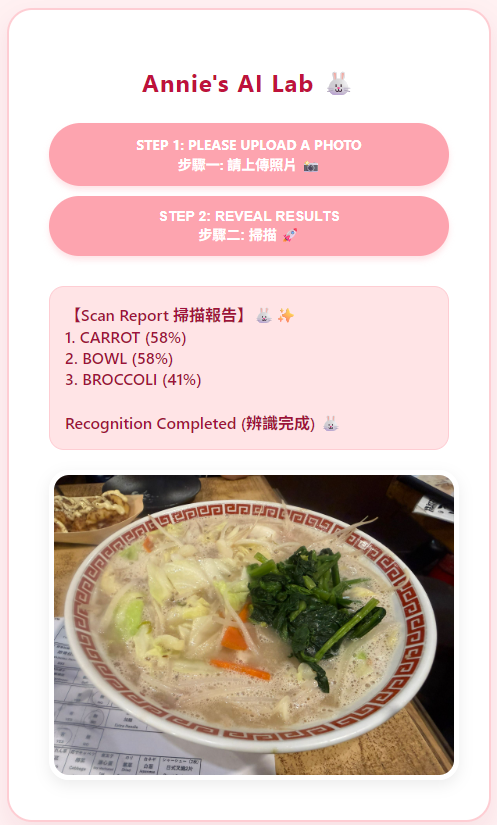
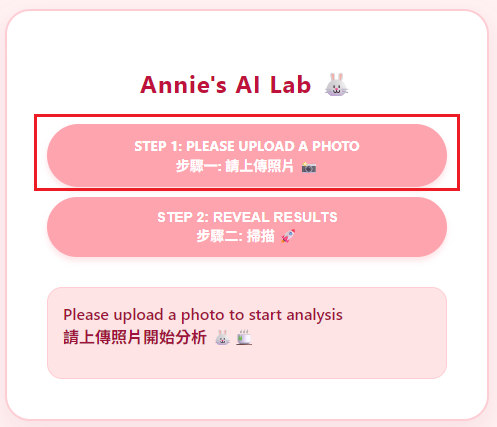
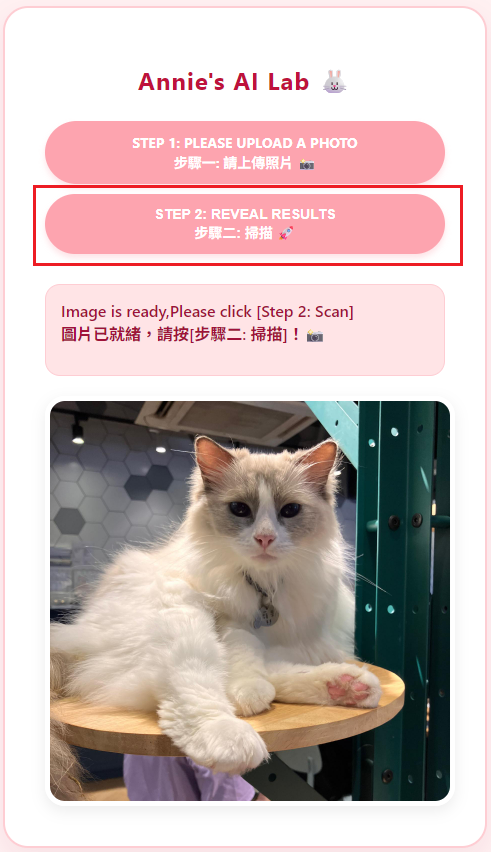
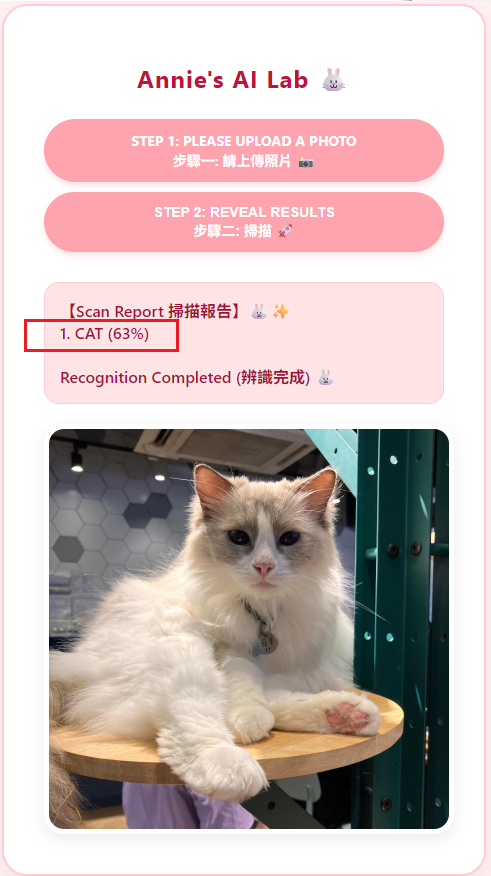
I wasn’t satisfied with the basic look. I wanted an interface that felt like a high-tech scanner but was wrapped in a healing Baby Pink aesthetic.
A Modern “Tortoise and the Hare” Race
The development felt like a race between two characters:
- The Hare (AI Model): Highly talented (EfficientNet engine) but a bit temperamental. If the network flickered or the browser sandbox restricted its “WASM supplies,” it would simply go into “hibernation”.
- The Tortoise (Annie the Developer): Armed with SA persistence, I constantly optimized paths and swapped CDNs. Though progress seemed slow, I solved the environment compatibility issues step by step.
✨ The “Pro Mode” Rescue
When I hit a technical wall, I switched Gemini from “Fast mode” to “Pro mode”. It was like magic! The Pro model immediately diagnosed the root cause: a tiny efficientdet typo. Once the puzzle was solved, the little Hare finally crossed the finish line!
【Final Result】
We moved to VS Code and used Live Server to get this customized system up and running.
[ 📸 Hilarious UAT Moment ]
While performing UAT, I used a box of “instant rice” bought from Donki for a scan. The AI took it very seriously and reported it as a “sandwich.” This kind of “surprise” from model bias adds a rare touch of humor to our coding journey.
📋 Acceptance Report: Google AI Edge Gallery
| Dimension | Result | Technical Key Point |
| Efficiency | ✅ Rapid Response | 250 Mbps bandwidth allows 3.1MB models to deploy instantly. |
| Logic | ✅ Edge Computing | Utilizes WASM to run locally in the browser; works offline. |
| Debugging | ✅ Perfect Fix | Resolved naming ambiguity between Net (Classify) and Det (Detect). |
| UI/UX | ✅ Healing Pink | Matches Baby Pink aesthetics with dynamic button feedback. |
| Performance | ⚠️ To be Tuned | Mistook “Instant Rice” for a “Sandwich”—reflecting general model bias. |
🌸 Postscript: The Evolution from “Responding” to “Pairing”
Back to the story of the “Celery Responding to Chicken.” On April 15, 2026, the AI was still busy playing its “Q&A” game, and that’s when I actively taught it the correct word choice.
Technology evolves at a breathtaking pace. By April 16, 2026, the system had updated! Not only did the model fix the linguistic error, but it could also list every ingredient on the plate in detail. Interestingly, the English version has always been quite detailed and never suffered from this Chinese homophone confusion.
This “one-day evolution” showed me how fast Google is closing the gap in multi-language localization. From now on, the celery will no longer “respond” to the chicken—it has finally learned how to be “paired” with it elegantly. 🐰✨
🐰 Conclusion
This was my first time exploring the Google AI Edge Gallery. Gemini was a highly reliable teammate, helping me troubleshoot and filling the technical gaps I needed. Finding a partner who can jump in and grow with you is the most valuable thing of all.
Example 1: Standard
HTML
https://cdn.jsdelivr.net/npm/@mediapipe/tasks-vision/vision_bundle.mjs
<style>
  body {
    background-color: #fff1f2;
    font-family: 'Segoe UI', Tahoma, Geneva, Verdana, sans-serif;
    color: #9f1239;
    display: flex;
    justify-content: center;
    align-items: center;
    min-height: 100vh;
    margin: 0;
  }
  #container {
    background-color: #ffffff;
    padding: 40px;
    border-radius: 25px;
    box-shadow: 0 10px 25px rgba(159, 18, 57, 0.08);
    text-align: center;
    border: 2px solid #fecdd3;
    max-width: 400px;
  }
  h1 {
    color: #be123c;
    font-size: 24px;
    margin-bottom: 25px;
    letter-spacing: 1px;
  }
  /* 自定義粉色按鈕 */
  .custom-file-upload {
    display: inline-block;
    padding: 12px 24px;
    cursor: pointer;
    background-color: #fda4af; /* Baby Pink 按鈕 */
    color: #ffffff;
    border-radius: 50px;
    font-weight: bold;
    text-transform: uppercase;
    font-size: 14px;
    transition: all 0.3s ease;
    margin-bottom: 20px;
    box-shadow: 0 4px 6px rgba(253, 164, 175, 0.3);
  }
  .custom-file-upload:hover {
    background-color: #f43f5e;
    transform: translateY(-2px);
  }
  #fileInput {
    display: none;
  }
  #result {
    margin-top: 20px;
    font-size: 18px;
    font-weight: 600;
    color: #9f1239;
    background-color: #ffe4e6;
    padding: 15px;
    border-radius: 15px;
    border: 1px solid #fecdd3;
  }
  #imagePreview {
    margin-top: 20px;
    border-radius: 20px;
    border: 5px solid #ffffff;
    box-shadow: 0 5px 15px rgba(0,0,0,0.08);
  }
</style>
<div id="container">
  <h1>My Edge AI Laboratory 🐰</h1>

  <label for="fileInput" class="custom-file-upload">
    Upload photo
  </label>
  <input type="file" id="fileInput" accept="image/*">

  <img id="imagePreview" style="max-width: 100%; display: none;">
  <div id="result">Ready...</div>
</div>
JS
import { ImageClassifier, FilesetResolver } from "https://cdn.jsdelivr.net/npm/@mediapipe/tasks-vision/vision_bundle.mjs";async function runAI(imageElement) { const vision = await FilesetResolver.forVisionTasks("https://cdn.jsdelivr.net/npm/@mediapipe/tasks-vision@latest/wasm"); const classifier = await ImageClassifier.createFromOptions(vision, { baseOptions: { modelAssetPath: `https://storage.googleapis.com/mediapipe-models/image_classifier/efficientnet_lite0/float32/1/efficientnet_lite0.tflite` }, maxResults: 3 }); const results = classifier.classify(imageElement); document.getElementById('result').innerText = "Result:" + results.classifications[0].categories[0].categoryName;}document.getElementById('fileInput').addEventListener('change', (e) => { const file = e.target.files[0]; const reader = new FileReader(); reader.onload = (f) => { const img = document.getElementById('imagePreview'); img.src = f.target.result; img.style.display = 'block'; img.onload = () => runAI(img); }; reader.readAsDataURL(file);});
Example 2:Customized
HTML
<html lang="zh-Hant"><head> <meta charset="UTF-8"> <meta name="viewport" content="width=device-width, initial-scale=1.0"> <title>Annie's Pink AI Lab 🐰</title> <style> body { background-color: #fff1f2; /* Very light Baby Pink background */ font-family: 'Segoe UI', Tahoma, Geneva, Verdana, sans-serif; color: #9f1239; /* dark pink text */ display: flex; justify-content: center; align-items: center; min-height: 100vh; margin: 0; } #container { background-color: #ffffff; padding: 40px; border-radius: 25px; box-shadow: 0 10px 25px rgba(159, 18, 57, 0.08); /* light pink shade */ text-align: center; border: 2px solid #fecdd3; /* Soft pink border */ max-width: 400px; width: 90%; } h1 { color: #be123c; /* medium pink title */ font-size: 24px; margin-bottom: 25px; letter-spacing: 1px; } /* Custom pink button */ .custom-file-upload, .analyze-btn { display: inline-block; padding: 12px 24px; cursor: pointer; background-color: #fda4af; /* Baby Pink Button */ color: #ffffff; border-radius: 50px; font-weight: bold; text-transform: uppercase; font-size: 14px; transition: all 0.3s ease; margin-bottom: 10px; box-shadow: 0 4px 6px rgba(253, 164, 175, 0.3); border: none; width: 100%; box-sizing: border-box; } .custom-file-upload:hover, .analyze-btn:hover { background-color: #f43f5e; /* Deepen on hover */ transform: translateY(-2px); } .analyze-btn:disabled { background-color: #fbcfe8; cursor: not-allowed; transform: none; } #fileInput { display: none; } #result { margin-top: 20px; font-size: 16px; font-weight: 600; color: #9f1239; background-color: #ffe4e6; /* Result area background */ padding: 15px; border-radius: 15px; border: 1px solid #fecdd3; min-height: 60px; white-space: pre-wrap; text-align: left; } #imagePreview { margin-top: 20px; border-radius: 20px; border: 5px solid #ffffff; box-shadow: 0 5px 15px rgba(0,0,0,0.08); max-width: 100%; display: none; } .status-dot { display: inline-block; width: 10px; height: 10px; border-radius: 50%; background-color: #fda4af; margin-right: 5px; } </style></head><body><div id="container"> <h1>Annie's AI Lab 🐰</h1> <input type="file" id="fileInput" accept="image/*"> <label for="fileInput" class="custom-file-upload"> Step 1: Please upload a photo <br>步驟一: 請上傳照片 📸 </label> <button id="submitBtn" class="analyze-btn" disabled> Loading (充能中)... 🍵 </button> <div id="result">System is starting (系統啟動中)... 🐰✨</div> <img id="imagePreview" alt="Preview"></div><script type="module"> import { ObjectDetector, FilesetResolver } from "https://cdn.jsdelivr.net/npm/@mediapipe/tasks-vision@0.10.14"; let objectDetector; const resultDiv = document.getElementById('result'); const submitBtn = document.getElementById('submitBtn'); const imgPreview = document.getElementById('imagePreview'); const fileInput = document.getElementById('fileInput'); // Init AI async function initAI() { try { console.log("🚀 Engine Start..."); const vision = await FilesetResolver.forVisionTasks( "https://cdn.jsdelivr.net/npm/@mediapipe/tasks-vision@0.10.14/wasm" ); // 💡 efficientDET objectDetector = await ObjectDetector.createFromOptions(vision, { baseOptions: { modelAssetPath: "https://storage.googleapis.com/mediapipe-models/object_detector/efficientdet_lite0/float32/1/efficientdet_lite0.tflite", delegate: "CPU" }, scoreThreshold: 0.3, runningMode: "IMAGE" }); console.log("✅ Loading completed (順利加載)!"); resultDiv.innerText = "Please upload a photo to start analysisn請上傳照片開始分析 🐰🍵"; submitBtn.innerText = "Step 2: Reveal resultsn步驟二: 掃描 🚀"; submitBtn.disabled = false; } catch (err) { console.error(err); resultDiv.innerText = "初始化失敗 ❌n請檢查網路連線"; } } initAI(); // Upload fileInput.onchange = (e) => { const file = e.target.files[0]; if (file) { const reader = new FileReader(); reader.onload = (f) => { imgPreview.src = f.target.result; imgPreview.style.display = 'block'; resultDiv.innerText = "Image is ready,Please click [Step 2: Scan]n圖片已就緒,請按[步驟二: 掃描]!📸"; }; reader.readAsDataURL(file); } }; // Perform analysis submitBtn.onclick = async () => { if (!objectDetector) return; resultDiv.innerText = "Initializing (初結化中)... 🐰🧠"; // Slight delay for UI updates setTimeout(() => { const detections = objectDetector.detect(imgPreview); displayResults(detections); }, 100); }; function displayResults(results) { if (results.detections.length > 0) { const topResults = results.detections .sort((a, b) => b.categories[0].score - a.categories[0].score) .slice(0, 3); let report = "【Scan Report 掃描報告】🐰✨n"; topResults.forEach((d, i) => { const name = d.categories[0].categoryName; const score = Math.round(d.categories[0].score * 100); report += `${i + 1}. ${name.toUpperCase()} (${score}%)n`; }); resultDiv.innerText = report + "nRecognition Completed (辨識完成) 🐰 "; } else { resultDiv.innerText = "Recognition failed (辨識失敗) 🤔 n"; } }</script></body></html>
 Annie’s Journey with free AI | Annie 與 免費AI 的日常